Previewing Canvas Behavior
In UI Editor Preview, the UI elements in your canvas perform as they would when the game is running.
Try these examples:
- Pause on an interactive element to show its hover state.
- Press (click) an interactive element to show its pressed state.
- Adjust sliders.
- Input and edit text.
- Use keyboard, mouse, or gamepad to interact with the UI.
Note:If the interactive component’s Input enabled setting is deselected (unchecked), that element is drawn in its disabled state and does not respond to hover or click actions.
Animation List
The Animation List pane lists all the UI animation sequences found on the canvas that you are previewing. Select an animation to use the reset, play, pause, and set-to-end controls. Hold Ctrl or Shift to select and control multiple animations at once. You can also control animations independently and simultaneously so that one may be playing, for example, while you pause another.
Action Log
The Action Log pane shows the actions generated by interacting with interactive elements in the UI canvas while in Preview. These logged actions help the canvas designer ensure that correct actions are being triggered.
To use this feature, you must type text strings in the Actions section of the interactive element’s properties.
To enable Action Log entries
In the UI Editor viewport or Hierarchy pane, select the element to which the interactive component is attached.
In the Properties pane, under the Actions category, enter a text string for each action for which you want to trigger an action log entry.
The text strings are fully customizable; you can enter any string that helps you ensure that the correct actions are being triggered.
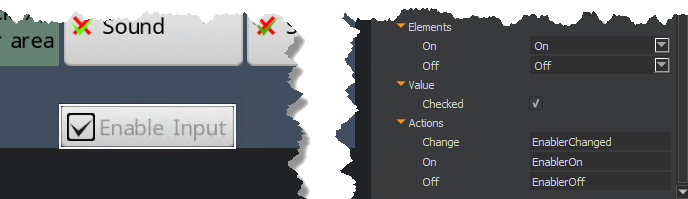
For example, in the picture below, EnablerChanged is displayed whenever the Enable Input check box changes state (from off to on, or on to off). EnablerOn is displayed when the check box is selected, and EnablerOff is displayed when it is deselected.
During Preview, Script Canvas and Lua scripts aren’t active. Actions taken in UI canvas Preview have no effect on anything outside of the canvas.