Actions
You can use actions to trigger parameter value changes when an animation graph state or transition reaches a specified state.
You can set the Parameter Action on the following:
State
Set actions to trigger upon:
- Entering a state - Action triggers when the state is fully blended into the node and is no longer in transition
- Exiting a state - Action triggers when the state is fully blended out of the node and the node is no longer active
Transition
Set actions to trigger upon:
- Entering a transition - Action triggers immediately upon starting a transition
- Exiting a state - Action triggers when a transition is fully blended to the target state
Adding Actions to a State
Add an action to a state to achieve a parameter value change that triggers after the state is either fully blended into the node or fully blended out of the node.
To add an action to a state
In the Animation Editor, open or create an animation graph.
Select a node.
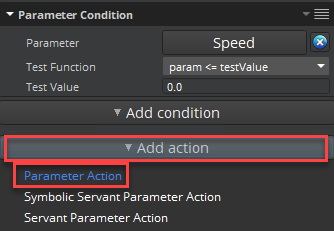
In the Attributes panel, click Add action and then Parameter Action.
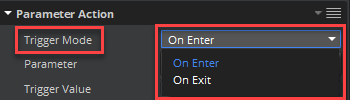
In the Attributes panel, under Parameter Action, select a Trigger Mode. You can select one of the following options:
- On Enter - Executes a State action when the state is fully blended into the node and is no longer in transition
- On Exit - Executes a State action when the state is fully blended out of the node and the node is no longer active
Choose Select parameter and select your preferred parameter.
The selected parameter name replaces the text in the Select parameter box.

To turn the action on, set the Trigger Value to
1.
Adding Actions to a Transition
Add an action to a transition to achieve a parameter value change that triggers either when the transition starts or when the transition is fully blended to the target state.
To add an action to a transition
In the Animation Editor, open or create an animation graph.
Select a transition.
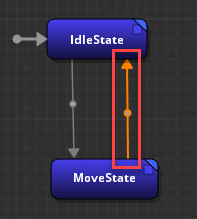
- In the Attributes panel, click Add action and then Parameter Action.
The following options trigger the change on a follower graph but with different inputs to the follower graph’s parameter:
- Follower Parameter Action - A constant value is provided
- Symbolic Follower Parameter Action - A user-selected value is provided
In the Attributes panel, under Parameter Action, select a Trigger Mode. You can select one of the following options:
- On Enter - Executes the action immediately upon starting a transition
- On Exit - Executes the action when a transition is fully blended to the target state
Choose Select parameter and select your preferred parameter.
The selected parameter name replaces the text in the Select parameter box.
To turn the action on, set the Trigger Value to
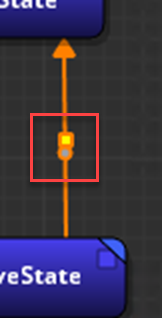
1.Note:When you set a trigger on a transition, a square appears on the transition line, which represents the action.