
Creating UI Canvases
The UI Editor uses the concept of a canvas as an invisible backdrop for your game user interface elements. Once you create a canvas, you can add elements such as images, text, and buttons.
To create a UI canvas
In O3DE Editor, click Tools, UI Editor.
The UI Editor automatically creates an empty canvas.
In the UI Editor, add elements, components, and slices.
Click File, Save As. Name the canvas with a
.uicanvasfile extension, and then click Save.
You can open multiple canvases in the UI Editor. For each open canvas, a tab appears in the tab bar. The active canvas is highlighted in the tab bar. Its content is displayed in the viewport and its elements and properties are displayed in the hierarchy and properties panes.
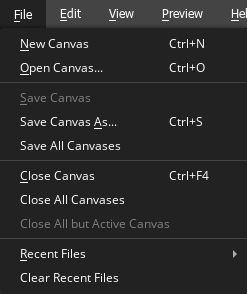
From the UI Editor’s File menu, in addition to the basic open, close, and save functionality, you can also do the following:
- Save all open canvases
- Close all open canvases
- Close all but the active canvas
Navigating the Viewport
Use keyboard, mouse, or menu to navigate the UI Editor viewport in Open 3D Engine.
Changing Canvas Size
Change your game UI canvas size to visualize how your canvas might look on other displays and devices of varying resolutions in Open 3D Engine.
Previewing Canvases
Preview your game UI canvas in Open 3D Engine to visualize how it might look at different screen resolutions and to see how the interactive elements change state.
Configuring Canvas Properties
Set canvas properties for UI canvases in UI Editor in Open 3D Engine.
Placing UI Canvases in the 3D World
Place a UI canvas on an object in the 3D world in Open 3D Engine (O3DE).
Texture Atlases
Use texture atlases on UI canvases for quicker rendering of textures in Open 3D Engine.
Debugging UI Canvases
Use console variables and commands to debug UI canvases in Open 3D Engine.
Loading UI Canvases
Learn how to load a UI Canvas at runtime using Open 3D Engine (O3DE).
Accessing UI Elements at Runtime
Learn how to manipulate a UI canvas at runtime using Open 3D Engine (O3DE).