Using the Track View Editor
The Track View is the primary tool to create and manage cinematic sequences. A sequence is the content generated from the Track View for cutscenes or other canned animation triggers. When you create a sequence, this creates a component entity in the level. The component entity stores all of the animation key data that you specified in the Track View.
If you want to generate cutscenes for games or create a script to trigger an animation, you can use the Track View to control cameras, component entities, global variables in a level, and so on.
To create a sequence in the Track View
Do one of the following:
- In O3DE Editor, choose Tools, Track View.
- Press T.
To create a sequence, do one of the following:
- Choose Sequences, New Sequence.
- Click the Add Sequence icon
 .
.
Enter a sequence name, such as Example Sequence and click OK.
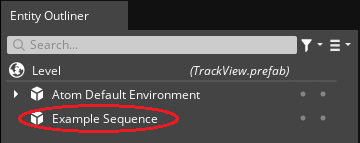
In the Entity Outliner, a component entity appears with the same name as your sequence. This component entity has a Sequence component that stores your sequence data from the Track View.
After you create a sequence, you can add properties to it. Any part of the sequence is considered a node. Nodes can be a reference to existing component entities or added to a sequence. For example, if you want to include an active camera for your sequence, you can add the Director node. Each node can have one or more tracks, depending your animation sequence. A track displays animation keys on a timeline in relation to the property that is animated on a node.
To add a node to a sequence
In the Track View, right-click the sequence or the node browser and select Add <Name> Node.
Select the node to update its properties.
For more information, see Track View Editor Nodes.
Topics
Adding a Depth of Field Node
Use the Depth of Field node in Open 3D Engine’s
Color Correction Node
Use the Color Correction node in the O3DE Track View editor to change the CMYK, brightness, contrast, saturation, and hue in a scene in O3DE.
Comment Node
Use the Comment node in O3DE’s
Component Entities and Component Nodes
Create a component entity node to add to a track in Open 3D Engine’s
Console Variable Node
Use the console variable node to use and animate console variables in a track view sequence of a O3DE game.
Director (Scene) Node
Add a Director (Scene) node in the
Environment Node
Use the Environment node in O3DE’s
Event Node
Use the event node to trigger and send values to Script Canvas in Open 3D Engine.
Full Screen Effect Nodes
See the following full screen effect nodes in the
Material Node
Use material nodes in O3DE Editor’s
Radial Blur Node
Add a Radial Blur node to blur the animation outward in a radial pattern in Open 3D Engine’s
Screen Fader Node
Use the Screen Fader node to fade the screen in and out in a Open 3D Engine track view sequence.
Shadows Setup Node
Use the Shadows Setup node in Open 3D Engine’s
Track View Editor Toolbars
Create sequences for animations using the
Using Animation Curves
Use the Curve Editor in